
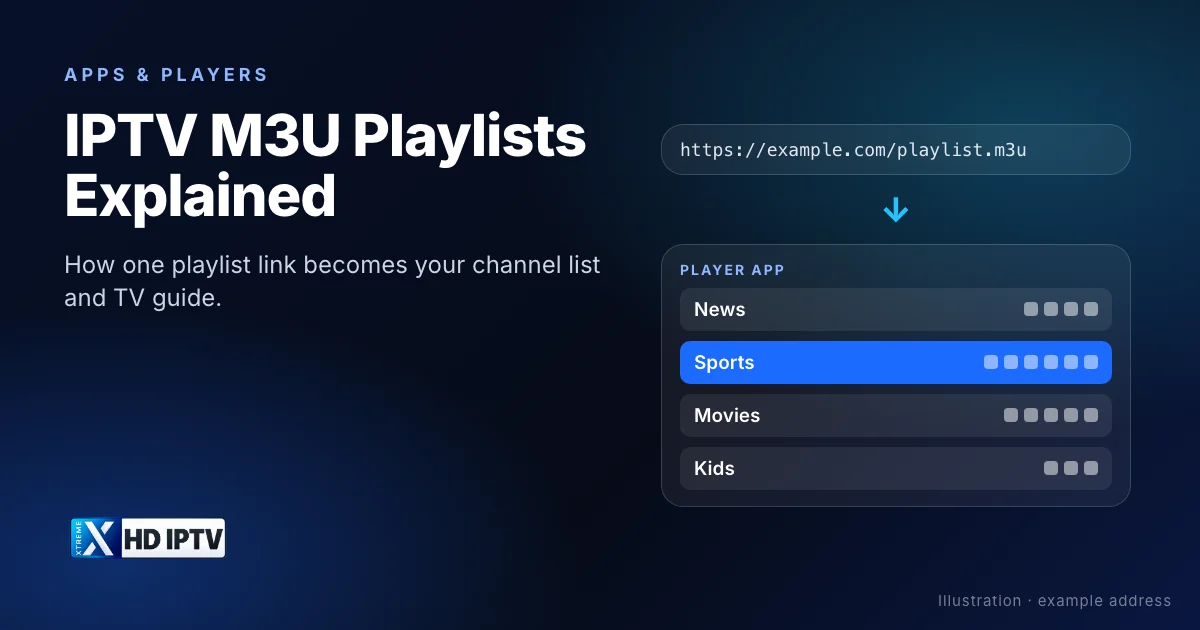
M3U is one of the oldest formats in streaming and still one of the most common ways to load an IPTV subscription into a player. You will meet it as a long link from your provider, a .m3u file, or an option called “Load playlist” in your app. This guide explains what is inside an IPTV M3U playlist, how it compares with Xtream Codes logins, how to add one with a TV guide, and how to fix the errors people run into most often.
What is an M3U playlist?
An M3U file is a plain-text playlist. Each entry points to a media file or stream, optionally with a title and extra details. The format began with desktop music players in the 1990s and spread because almost every media player can read it.
In IPTV, the playlist lists your channels: each entry has the channel's name, logo, group and the address of its live stream. Your provider generates the playlist for your account, usually as a URL, and your player downloads it to build the channel list. The playlist itself does not contain video; it only tells the player where to find it.
What's inside an M3U file
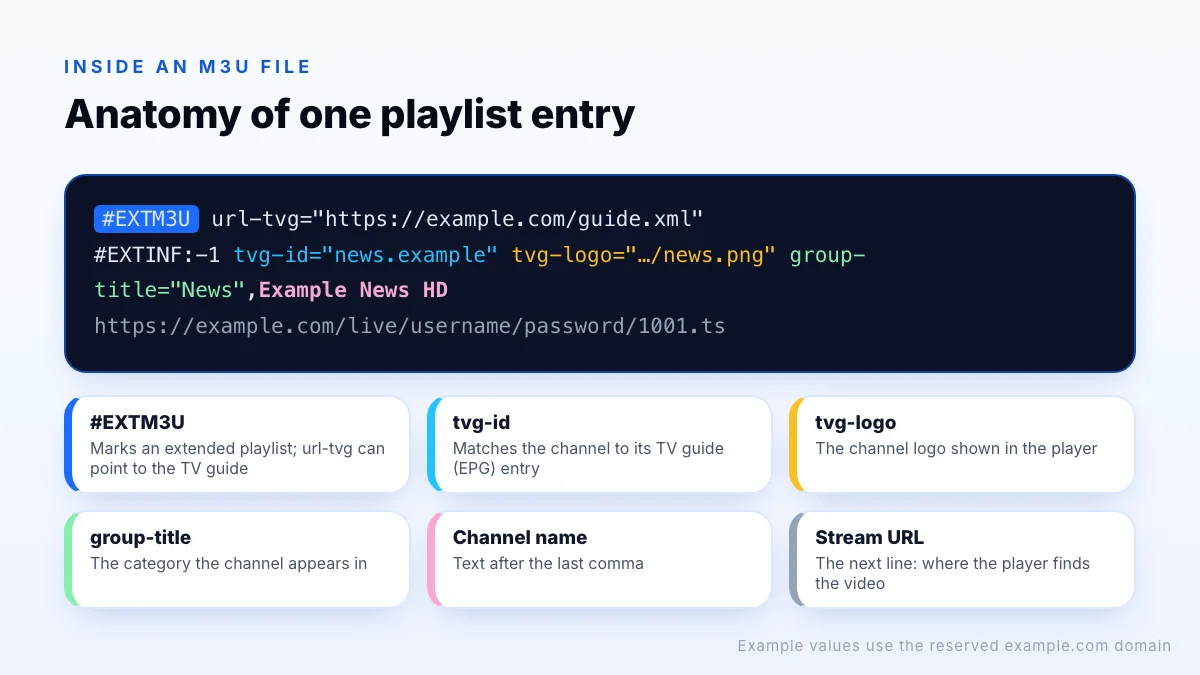
An IPTV playlist with two channels looks like this (example addresses only):
#EXTM3U url-tvg="https://example.com/guide.xml"
#EXTINF:-1 tvg-id="news.example" tvg-logo="https://example.com/logos/news.png" group-title="News",Example News HD
https://example.com/live/username/password/1001.ts
#EXTINF:-1 tvg-id="sport.example" tvg-logo="https://example.com/logos/sport.png" group-title="Sports",Example Sport 4K
https://example.com/live/username/password/1002.ts- #EXTM3U marks the file as an extended M3U playlist. In IPTV playlists, it can also point to the TV guide with
url-tvg. - #EXTINF starts each channel.
-1means the stream has no fixed length, which is normal for live TV. The text after the last comma is the channel name. - tvg-id links the channel to its entry in the TV guide, tvg-logo sets the logo, and group-title sets the category.
- The next line is the stream address itself.
M3U vs M3U8 vs Xtream Codes
| What it is | In practice | |
|---|---|---|
| M3U | Text playlist of streams | One link loads all channels; guide often added separately |
| M3U8 | M3U saved as UTF-8 text | Also the playlist format used by HLS streaming; handles non-English channel names well |
| Xtream Codes | Login with username, password and server URL | Player fetches live TV, films, series and guide automatically |
The M3U8 extension simply means the text is UTF-8 encoded. Apple's HTTP Live Streaming (HLS) standard, RFC 8216, uses M3U8 playlists to deliver video in short segments, so you will see .m3u8 addresses inside some IPTV playlists too.
If your player and provider support both, an Xtream Codes login is usually more convenient: on-demand films and series appear in their own sections, and the guide loads without extra setup. M3U is the more universal choice and works in players that have no Xtream Codes option. Our IPTV player comparison shows which login types popular apps support.
How to add an M3U playlist to a player
The steps are similar in most apps:
- Open the player and choose to add a playlist, often called “Load your playlist or file/URL” or “M3U playlist”.
- Choose the URL option and give the playlist a name, such as “Living room”.
- Paste or type the M3U link exactly as your provider sent it, including
http://orhttps://. - Add the EPG link if the app asks for one (see below), then save and wait for channels to load.
Smart IPTV playlists on smart TVs
Many smart TV players work differently: the app shows a device ID or MAC address, and you upload your M3U link on the player's website against that ID, then restart the app. This saves typing a long URL with a TV remote. Only use the official website of the app you installed. On IPTV Smarters Pro, most people use the Xtream Codes login instead; our IPTV Smarters Pro guide explains both.
Adding a TV guide (EPG) to an M3U playlist
Channel guides for M3U playlists normally come as a separate XMLTV file, an XML format that lists programmes by channel and time. If the playlist header includes url-tvg, many players load it automatically. Otherwise, paste the EPG URL from your provider into the app's EPG or TV guide settings. Guide entries are matched using each channel's tvg-id, so a channel with a missing or wrong ID shows “No information”. Learn more in what an EPG is.
Editing and organising a playlist
Large playlists can contain thousands of channels. Before reaching for a separate IPTV editor, check what your player can do: most let you hide groups, mark favourites and reorder channels without touching the file. Because your provider refreshes the playlist from the URL, edits made in the app survive updates; edits made to a downloaded copy do not.
If you do use a playlist editor app or website, keep in mind that you are giving it your playlist link, which normally contains your username and password. Prefer offline editors, or ones you trust.
Fixing common M3U playlist errors
“Invalid playlist” or nothing loads
Check the link character by character, including the protocol, port and any & parameters. Opening the link in a computer browser should download a text file starting with #EXTM3U; if it shows an error, the problem is the link or the account, not the app.
Channels load but don't play
Try another channel, then another player such as VLC. If nothing plays anywhere, the subscription may have expired or the server may be down. Our IPTV troubleshooting guide walks through the checks in order.
Strange characters in channel names
The file is probably UTF-8 but being read as another encoding. Use an M3U8 version of the link or a player that supports UTF-8.
Channels appear twice or in the wrong groups
This usually happens after adding a new playlist link without removing the old one, or when the provider reorganises its groups. Delete the old playlist profile in the player, add the current link once, and let the app rebuild its favourites.
Logos are missing
Logos come from the tvg-logo addresses in the playlist. If they are blank, refresh the playlist and clear the app's cache; if they are still missing, the logo links themselves may have changed.
The playlist takes ages to load
Very large playlists strain low-memory devices. Hide unused groups, or ask your provider whether a lighter version or an Xtream Codes login is available.
Keep your playlist link private
Xtreme HD IPTV support can tell you which login type suits your player. Check the setup guide, or request a trial and test it on your own device.
The bottom line
An IPTV M3U playlist is a text list of channel streams that your player turns into a channel list, with a separate XMLTV link for the guide. Paste the link exactly as supplied, add the EPG link if your player asks for it, organise channels inside the app rather than editing the file, and keep the link private because it contains your login. If your player supports it, an Xtream Codes login is often simpler; our IPTV Smarters Pro guide shows both.