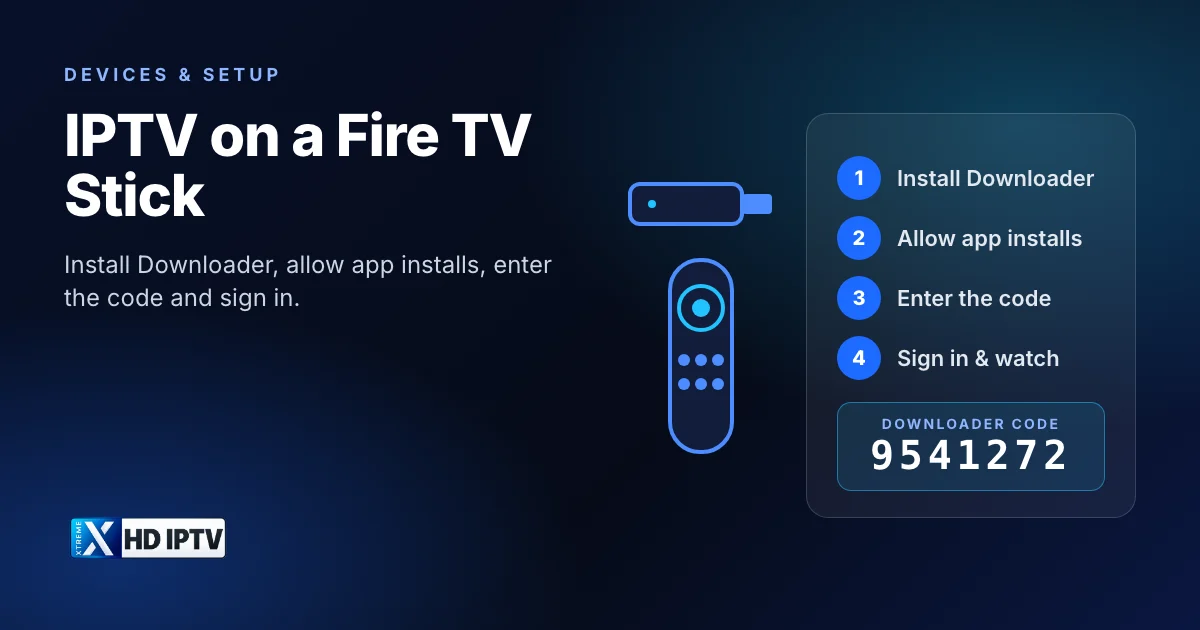
The Amazon Fire TV Stick is one of the most popular ways to watch IPTV: it's affordable, plugs into any TV with an HDMI port, and comes with a remote that suits a TV guide perfectly. The catch is that IPTV apps are usually installed with a separate app called Downloader, which means changing one setting first. This guide walks through every step, explains which Fire TV model to choose, and covers the fixes for the problems people hit most often.
What you need
- A Fire TV Stick or Fire TV device connected to your TV and to the internet, with the latest software update installed (Settings → My Fire TV → About → Check for updates).
- An IPTV subscription or trial. With Xtreme HD IPTV, support sends your login details on WhatsApp or Telegram after you pick a plan or request a trial.
- A stable connection: around 15 Mbps or more for 4K is a sensible minimum per stream.
- About ten minutes.
Step 1: Install Downloader
Downloader is a free app from AFTVnews that downloads files to your Fire TV. It's listed in the Amazon Appstore (and in Google Play for Android TV and Google TV devices).
- On the Fire TV home screen, select Find (the magnifying glass) and then Search.
- Type Downloader and select the app by AFTVnews from the results.
- Select Get or Download and wait for it to install. Don't open it yet.
Step 2: Allow app installs
Fire TV blocks apps from outside the Appstore by default, so you need to give Downloader permission to install them. You only do this once.
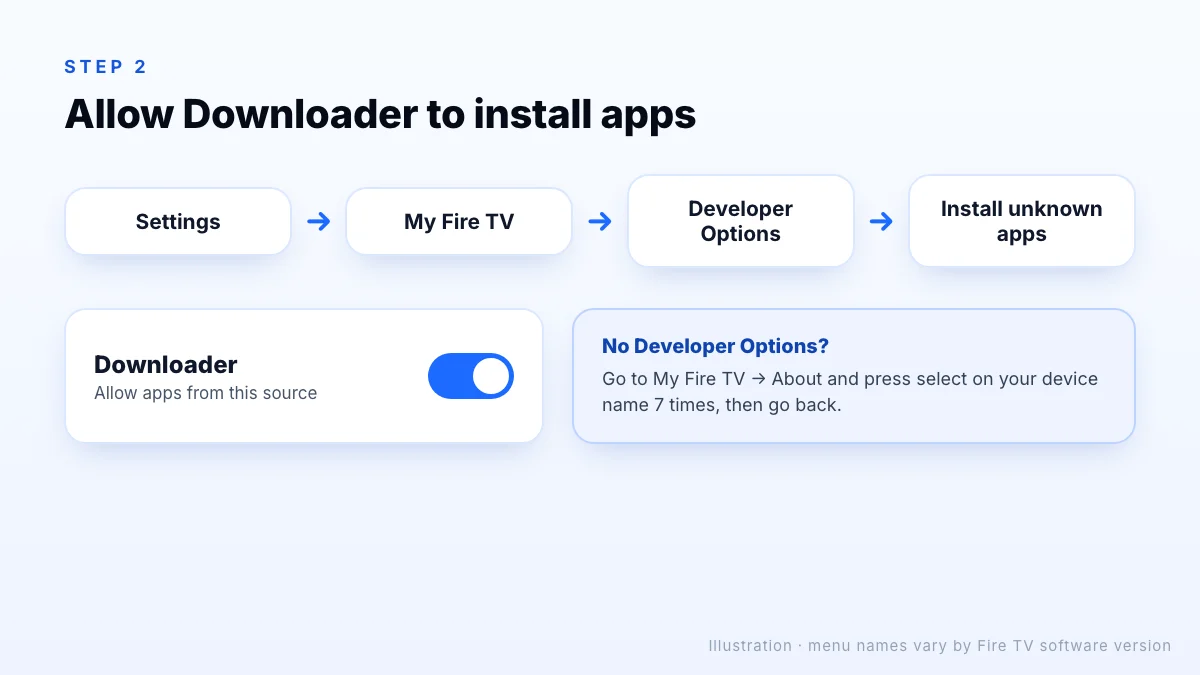
- Go to Settings → My Fire TV (called Device on some models).
- Open Developer Options. If you can't see it, go to About and press the select button on your device name 7 times. A message confirms you're now a developer; go back and Developer Options will appear.
- Select Install unknown apps and turn Downloader on. On older software the setting is a single switch called Apps from Unknown Sources; turn it on.
Is this safe?
Step 3: Install the app with code 9541272
- Open Downloader and allow any permission requests.
- On the Home tab, select the URL box, type 9541272 and select Go. Downloader looks the code up with the AFTVnews URL shortener and starts the download. You can type aftv.news/9541272 instead if you prefer.
- When the download finishes, select Install, then Done.
- If Downloader offers to delete the installation file, select Delete to free up storage; the app stays installed.
Prefer another player? Many third-party IPTV players also run on Fire TV. Our IPTV player comparison explains the options and the login types they support.
Step 4: Sign in and start watching
- Go to Settings → Applications → Manage installed applications, find the new app and select Launch. To find it faster next time, hold the Home button, choose Apps, highlight the app, press the menu button and choose Move.
- Enter the login details from your subscription or trial exactly as you received them.
- Wait a minute while the channel list and TV guide load for the first time.
- Open the guide, add your favourite channels, and start watching.
Which Fire TV device is best for IPTV?
Any current Fire TV device works. The best choice depends on your TV, so match the device to the screen rather than buying the most expensive model:
| Your TV | Choose | Why |
|---|---|---|
| 4K / UHD TV | A 4K Fire TV Stick or Fire TV Cube | Only 4K models output 4K, and newer models are faster with large channel lists |
| HD or Full HD TV | A standard HD Fire TV Stick | 1080p is the most an HD TV can show, so a 4K stick adds little |
| Weak Wi-Fi where the TV is | Any model plus an Ethernet adapter | A wired connection is usually more stable than Wi-Fi |
If you watch on several TVs at the same time, you'll need a device for each one and enough connections on your plan. Not using a Fire TV? See all supported devices.
Tips for smooth playback
- Go wired if you can. An Ethernet adapter for Fire TV removes most Wi-Fi drop-outs.
- Use 5 GHz Wi-Fi and keep the stick away from the back of the TV; an HDMI extender can improve reception.
- Turn off Data Monitoring. If it is enabled under Settings → Preferences, it can lower video quality to save data.
- Free up storage. Uninstall apps you don't use and clear caches under Manage installed applications.
- Restart regularly. Hold Select and Play/Pause together for about five seconds to restart the stick.
For speed guidance by picture quality, read what internet speed you need for 4K, FHD and HD.
Troubleshooting
Downloader says the code is invalid
Make sure you typed 9541272 in the URL box on Downloader's Home tab, not in a search box. If it still fails, type the short URL aftv.news/9541272.
“App not installed” error
Check that Downloader is still allowed under Install unknown apps (some updates reset it) and that the stick has free storage.
Developer Options disappeared after an update
Repeat the 7-press step in About to show it again. Your installed apps are not affected.
The app is slow when loading channels or the guide
Large channel lists and TV guides take memory. Close other apps, clear the app's cache under Manage installed applications, uninstall apps you no longer use, and restart the stick. Older and HD-only models are noticeably slower here than current 4K models.
The picture isn't in 4K
Check three things: that you have a 4K Fire TV model, that it's plugged into an HDMI port on your TV that supports 4K (some TVs only allow it on one or two ports), and that the display resolution under Settings → Display & Sounds is set to automatic. Then pick a channel that is actually broadcast in 4K or UHD; most channels are FHD or HD.
No sound, or sound out of sync
Open the audio settings under Display & Sounds and try a simpler output format such as stereo, especially if you use a soundbar or an older receiver. If only one channel is affected, try a different version of that channel or let support know.
Channels buffer at busy times
Try an FHD or HD version of the channel, restart your router and stick, and pause downloads on other devices. If problems continue, message support with your Fire TV model and the channel name.
The Xtreme HD IPTV setup guide also covers Android TV, smart TVs, phones and computers, and our FAQ answers common account questions.
The bottom line
Setting up IPTV on a Fire TV Stick takes about ten minutes: install Downloader, allow it to install apps, enter code 9541272 and sign in. Choose a 4K model if your TV is 4K, use a wired or strong 5 GHz connection, and most playback problems disappear. If you're deciding between a stick and a more powerful box, compare the options in our IPTV box guide, or request a trial and test it on the stick you already have.