
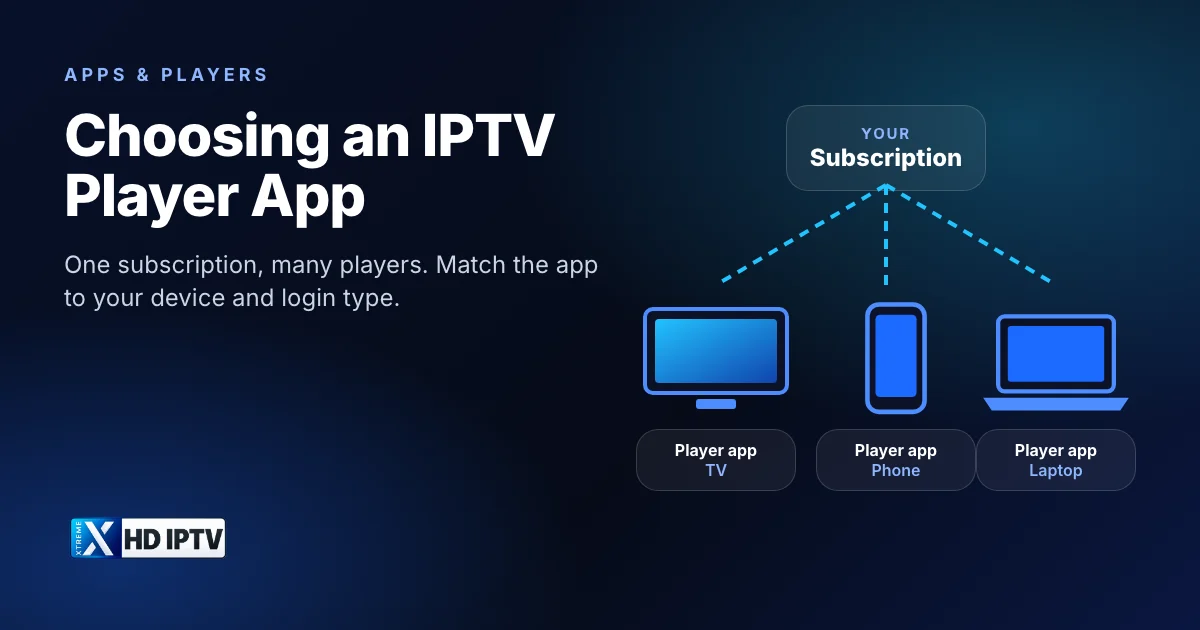
Your IPTV subscription gives you channels, movies and a TV guide, but you need an app to actually watch them. That app is the IPTV player, and the one you choose shapes your experience more than almost anything else: how fast channels switch, how readable the TV guide is, and whether features like recording or catch-up work. This guide explains what a player does, the login types you'll come across, and how popular players compare on each kind of device.
What an IPTV player does
An IPTV player is a media player built for TV-style viewing. It connects to your provider using the login details you enter, downloads the channel list and programme guide, and plays the streams you select. A good player also organises everything into sections for live TV, movies and series, and adds search, favourites and parental controls.
What a player does not do is supply content. The developers of TiviMate, XCIPTV, IPTV Smarters, Hot Player and IBO Player Pro all state in their official listings or websites that their apps include no channels and that users must add their own. Any app that claims to come “with free channels” is not a legitimate player and is best avoided.
Login types: Xtream Codes, M3U and MAC activation
Before choosing a player, check how your provider delivers your account. Most use one or more of these methods, and a player has to support the one you've been given.
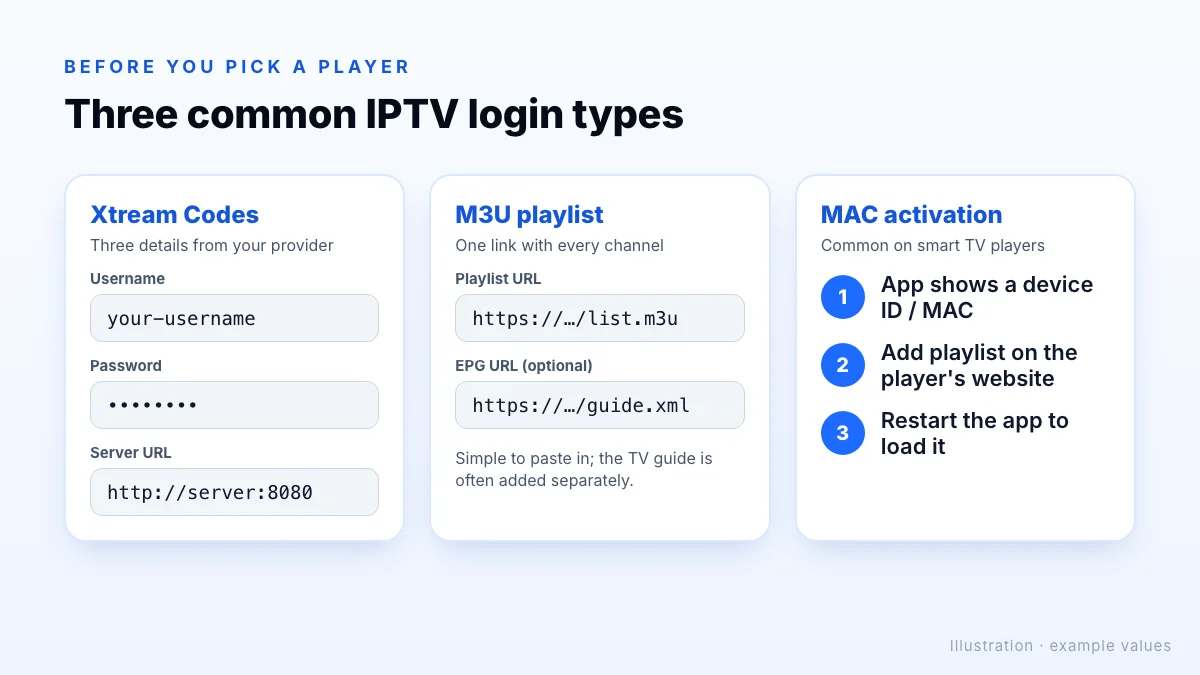
- Xtream Codes API. You enter a username, a password and a server URL. This is the most common method because the player can load live TV, movies, series and the TV guide in separate, well-organised sections.
- M3U playlist. A single link (or file) that lists every channel. It is simple to paste in, but the guide often has to be added separately as an EPG link.
- MAC or device-ID activation. Some players, mostly on smart TVs, show a device ID or MAC address on screen. You then add your playlist on the player's own website, and the app loads it. IBO Player Pro and Hot Player both use a playlist-upload page on their official sites.
Popular IPTV players compared
The table below summarises six widely used players. Platforms and features are taken from each app's official store listing or website; check the listing for your device before installing, because availability changes.
| Player | Official platforms listed | Login types | Notable features |
|---|---|---|---|
| TiviMate | Android TV (Google Play) | M3U, Xtream Codes, Stalker Portal | TV guide grid, catch-up, recording, multiview |
| IPTV Smarters Pro | Samsung smart TV app store | Xtream Codes API | Live, movies, series, EPG, parental control, multiple users |
| XCIPTV | Android TV, phones and tablets (Google Play) | Xtream Codes, M3U, EZServer | Two built-in players, catch-up, DVR recording, backup and restore |
| IBO Player Pro | iPhone, iPad (App Store); Android, Fire TV, Samsung, Windows (official site) | Playlist upload via website | 4K playback, VLC player, themes, subtitle selection |
| Purple Playlist Player | iPhone, iPad (App Store) | Playlist from your provider | Basic media player with optional premium plan |
| Hot Player | Google Play, Samsung, LG, Roku (official site) | Playlist upload via website | Simple interface, favourites list |
You can see the logos of these apps in the supported apps section of our homepage. They are independent apps, not affiliated with Xtreme HD IPTV.
Choosing a player by device
Fire TV Stick and Android TV
These devices have the widest choice. TiviMate is designed specifically for Android TV and remote-control navigation, and XCIPTV runs on Android TV as well as phones and tablets. Fire TV is based on Android, so many players can be installed with the Downloader app. Our Fire TV Stick setup guide shows the full process.
Android phones and tablets
Pick a player that supports touch. TiviMate's own listing says it is not optimised for phones or tablets, whereas XCIPTV lists phones and tablets alongside Android TV.
iPhone, iPad and Apple TV
Use a player from the App Store. IBO Player Pro and Purple Playlist Player both have App Store listings for iPhone and iPad, and IBO Player Pro's description also mentions Apple TV and Mac.
Samsung and LG smart TVs
Smart TVs can only install apps from their own stores. IPTV Smarters Pro has a Samsung store listing, and Hot Player's official site lists the Samsung and LG TV stores. Many smart TV players use MAC activation, so have a phone or laptop ready to add your playlist on the player's website.
Windows PC and Mac
IBO Player Pro's official site links to a Windows desktop version. On any computer, a general media player that opens M3U playlists can also work if your provider gives you an M3U link.
Features that matter
Once a player runs on your device and supports your login type, compare them on the things you'll use every day:
- TV guide quality. A clear, fast EPG grid makes thousands of channels manageable.
- Channel switching speed. Test how quickly a channel starts after you select it.
- Catch-up and recording. TiviMate and XCIPTV list both; useful if you often miss live shows.
- Favourites and search. Essential for jumping straight to the channels you watch most.
- Multiple profiles or playlists. Handy if you manage more than one subscription.
- Built-in player options. XCIPTV includes two players (ExoPlayer and VLC); switching between them can fix playback issues on some streams.
Free vs paid players
Many players are free to install and charge for extra features, and some use paid activation per device. Any fee goes to the app developer, not your IPTV provider, and buys app features only. TiviMate's listing says exactly this about its premium upgrade, and Purple Playlist Player lists $1.99 per month or $9.99 per year for premium in the App Store.
Tip
Download players safely
Copycat apps and websites are common. Hot Player's own site warns about unauthorised sites using its name to sell subscriptions. To stay safe:
- Install from your device's official app store, or from the developer's official website.
- Be wary of any player that comes bundled with channels or asks for unusual permissions.
- Never enter your login details into a website you reached through an advert or pop-up.
- Keep the app updated to get playback and security fixes.
If you're not sure which player to use, our support team can recommend one for your exact device. For step-by-step install instructions, see the Xtreme HD IPTV setup guide; for a deep dive into one popular player, read our IPTV Smarters Pro guide.
The bottom line
The best IPTV player is the one that runs well on your device and supports your provider's login type; the channels come from your subscription, not the app. Shortlist two or three players for your device, check their login options and features such as the TV guide and recording, and install them only from official sources. If your provider gives you an M3U link, our M3U playlist guide explains how to load it.