
Few things are more frustrating than a frozen channel five minutes before kick-off. The good news is that most IPTV problems have a small number of causes, and a few minutes of methodical checking usually finds the right one. This guide shows how to tell whether your IPTV service is down or the problem is at home, then works through fixes by symptom, the app settings worth checking, and what to send support if you still need help.
Is IPTV down, or is it just you?
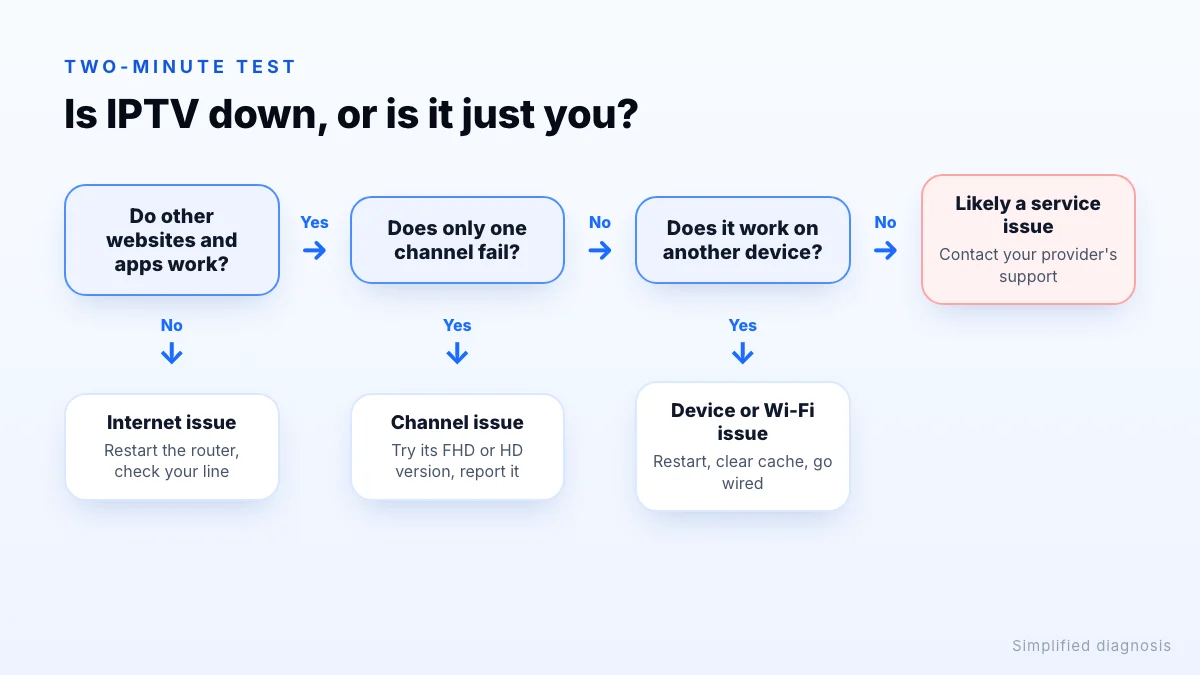
Before changing any settings, run this two-minute test. It narrows the problem down faster than anything else:
- Check your internet. Open a website or a video app such as YouTube on the same device. If that fails too, the problem is your internet connection, not IPTV.
- Try several channels. If only one channel fails, that channel's source is the likely cause. Try its FHD or HD version and report it to support.
- Try a second device. Sign in on a phone using mobile data, or on another TV. If it works there, the problem is the first device or your home network.
- Check your account. Make sure your subscription or trial hasn't expired and that no one else is using all your connections.
If every channel fails on every device while your internet works fine, the service itself is probably having a problem. Message your provider's support rather than resetting everything at home.
Quick fixes that solve most problems
If the problem is on your side, try these in order, testing after each one:
- Restart the app. Close it completely, not just switch away from it.
- Restart the device and the router. Unplug the router for 30 seconds. On a Fire TV Stick, holding Select and Play/Pause together for about five seconds restarts it.
- Clear the app cache. On Android TV and Fire TV, open the app in your settings and choose Clear cache (not Clear data, which signs you out).
- Reload the playlist or guide. Most players have a refresh option for channels and EPG.
- Update the app and the device. Old versions can break after server changes.
- Sign in again. Remove the profile and add it again using the details exactly as your provider sent them.
Fixes by symptom
Buffering or freezing
Buffering means the stream is arriving more slowly than it plays. Switch to the FHD or HD version of the channel, pause downloads and updates on other devices, and move to a wired connection if you can. If buffering happens only in the evening, your home network or internet line may be congested at peak time. Our internet speed guide shows how much bandwidth each quality needs.
Black screen with sound, or no picture at all
This is often a decoding problem. Try the HD version of the channel, switch the player between hardware and software decoding, or try a different player. 4K channels using HEVC need hardware support on the device; see what 4K IPTV needs.
“Login failed” or “authorization failed”
Check the username and password for typos, extra spaces and upper- and lower-case letters. Check that the server URL includes http:// and the port if your provider gave one. Also check the account hasn't expired. Our IPTV Smarters Pro guide shows the correct server URL format.
TV guide is empty or shows the wrong times
Refresh the EPG in the app, then check the device's date, time and time zone are set automatically. Many players also have an EPG time offset setting; set it back to zero if the guide is shifted by exactly an hour or more.
Channel list is empty after an update
Reload the playlist. If you use an M3U link, check it still opens; see M3U playlists explained.
Catch-up or replays don't play
Catch-up only works on channels where the provider offers it, usually marked with a clock or archive icon in the guide. If it is offered but won't play, check the device's time zone and the player's EPG offset, because a mismatch makes the app request the wrong time slot.
Sound out of sync
Try a simpler audio output such as stereo in the device's sound settings, especially with a soundbar or AV receiver. If only one channel is affected, report it.
Works on mobile data, but not on home Wi-Fi
That points to your home network or internet provider. Restart the router, try a different DNS server, and test with a wired connection.
IPTV settings worth checking
Players differ, but these settings are common and often help:
- Stream format. Some players let you choose between MPEG-TS and HLS (M3U8). If one stutters, try the other.
- Player engine and decoder. Many apps include more than one built-in player. Switching between them, or between hardware and software decoding, fixes many black screens.
- Buffer size. Where available, a slightly larger buffer can smooth out short drops in speed, at the cost of a longer wait when changing channels.
- Automatic frame rate. On Android TV and Fire TV, matching the display frame rate to the content can reduce judder on sport.
- Data saving. If the device has data monitoring or a data saver turned on, it can limit quality.
Network fixes for persistent buffering
- Use Ethernet. It is the single most effective fix. A powerline adapter is a good alternative if the TV is far from the router.
- Use 5 GHz Wi-Fi and keep the streaming device out from behind the TV.
- Change DNS. A public DNS service, such as Cloudflare's 1.1.1.1, can resolve some connection errors caused by your internet provider's DNS.
- Test speed on the device itself, at the time you watch. The US FCC's broadband speed guide is a useful reference for what different activities need.
- Test with and without a VPN. A VPN can help in some situations, but it adds overhead and can make streaming slower.
Too many screens?
When to contact support, and what to send
Contact your provider when the two-minute test points to the service, or when the fixes above haven't helped. Include:
- your device model and the app you use;
- the channel names affected and the time it happened;
- the exact error message, or a photo of the screen;
- what you have already tried.
That information usually turns a long back-and-forth into a single reply. Xtreme HD IPTV support is available 24/7 on WhatsApp and Telegram through the contact page. The setup troubleshooting section and the FAQ cover account questions, and if you are setting up a new device, start with the Fire TV Stick guide.
The bottom line
When IPTV stops working, spend two minutes finding out whether the service is down or the problem is at home before changing anything. Check other websites, other channels and a second device; then restart, clear the cache, re-check your login and move to a wired connection if you can. If every channel fails on every device, contact support with your device, app, channel names and the error message, and you'll usually get a fix in a single reply.