“4K” appears on almost every IPTV plan and streaming device, but plenty of people with a 4K TV never actually see a 4K picture. That is rarely the service's fault alone: Ultra HD only reaches your eyes when every part of the chain supports it. This guide explains what 4K IPTV means, which channels genuinely broadcast in 4K, what you need at home, and how to confirm you are getting it.
What 4K actually means
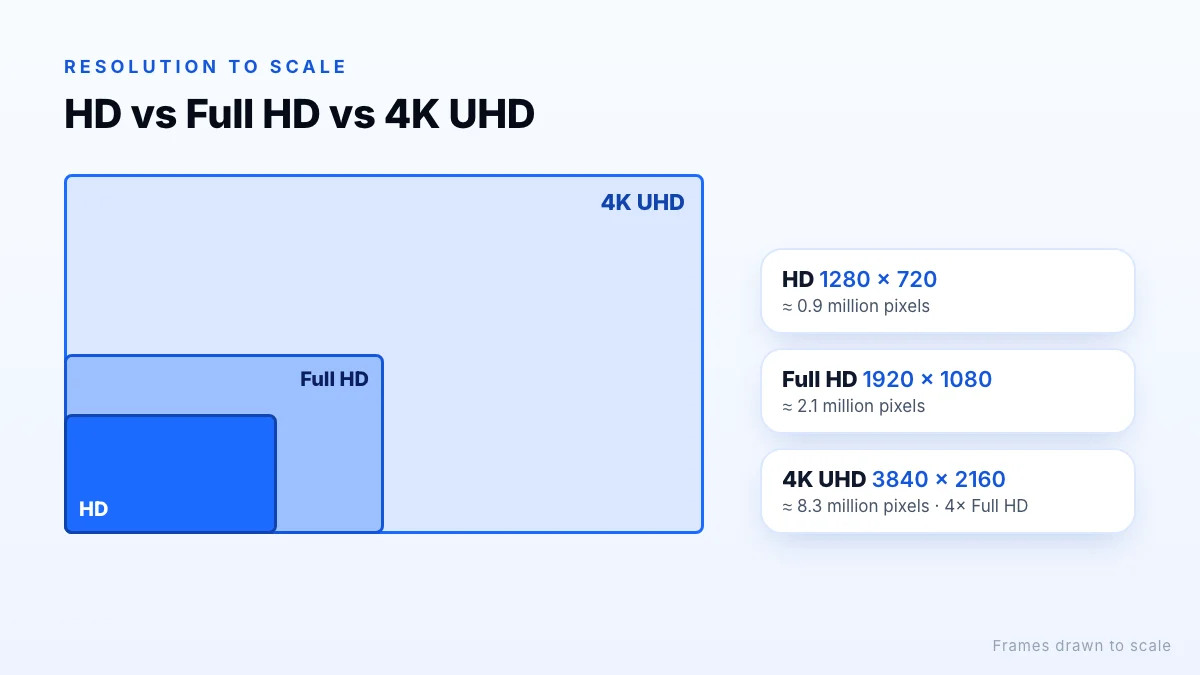
On TVs and streaming services, 4K means a picture 3,840 pixels wide and 2,160 pixels tall, usually labelled UHD or Ultra HD. That is four times the pixels of Full HD (1080p) and nine times those of 720p HD. The International Telecommunication Union defines this resolution for ultra-high definition television in its BT.2020 recommendation. (Cinema “DCI 4K” is slightly wider at 4,096 pixels, but TV content uses 3,840.)
| Label | Resolution | Pixels | Typical use |
|---|---|---|---|
| HD | 1280 × 720 | about 0.9 million | Older or bandwidth-saving channels |
| FHD (Full HD) | 1920 × 1080 | about 2.1 million | Most live channels today |
| 4K / UHD | 3840 × 2160 | about 8.3 million | Selected channels, events and films |
Which channels are really in 4K?
Most live TV is still produced and broadcast in Full HD or HD, because 4K production costs more and needs more bandwidth at every step. Native 4K is most common for:
- major sports events and selected live matches;
- dedicated UHD channels, such as nature and documentary channels;
- recent films and series in on-demand libraries.
On an IPTV channel list, 4K versions are usually labelled “4K”, “UHD” or grouped in their own category, next to FHD and HD versions of the same channel. Xtreme HD IPTV offers channels in 4K, UHD, FHD and HD so you can match the version to your screen and connection. A channel that is labelled 4K but originally produced in HD will be upscaled: sharper edges, maybe, but not real extra detail.
The 4K chain: source, device, TV and connection
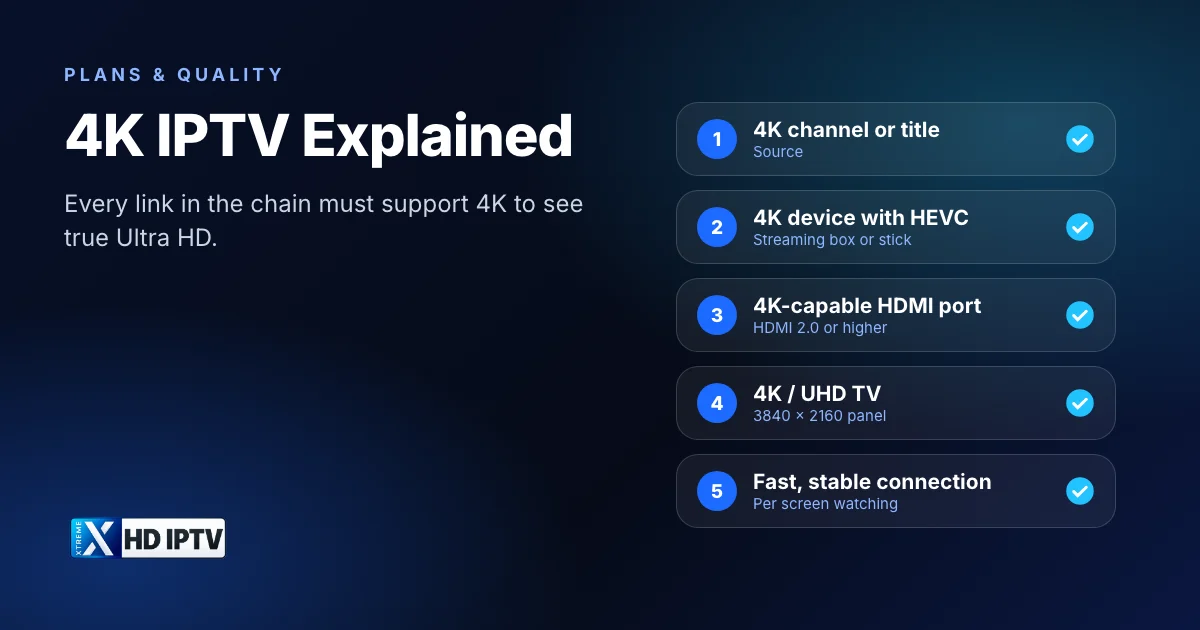
Think of 4K as a chain. The picture is only as good as the weakest link:
- Source. The channel or title must be available in 4K. Choose the 4K or UHD version of the channel in your list.
- Streaming device and player. The device must output 4K and decode the stream in hardware. Only 4K models of the Fire TV Stick, for example, output 4K. Our IPTV box guide lists the specs to check.
- HDMI port and cable. Many TVs only accept 4K at 60 frames per second on some HDMI ports. Use a port marked 4K, HDMI 2.0 or higher, and a cable rated for it.
- TV. It must be a 4K / UHD panel. A Full HD TV will simply scale the picture down.
- Internet connection. Netflix, for example, recommends 15 Mbps or more for its Ultra HD streams. Live channels can need more headroom, so treat that as a minimum per screen. Our internet speed guide for 4K, FHD and HD has the numbers for households with several screens.
Data use adds up
HEVC, HDR and why they matter
HEVC (H.265)
4K streams carry a lot of information, so they are usually compressed with HEVC, also known as H.265, which needs roughly half the bandwidth of the older H.264 for similar quality. Your device needs a hardware HEVC decoder to play these streams smoothly. Most 4K streaming devices from the last several years have one; very cheap boxes and older computers sometimes do not, which shows up as stuttering or a black screen with sound.
HDR
High dynamic range (HDR10, HLG, Dolby Vision) is separate from resolution: it improves brightness and colour rather than detail. HLG was designed with live broadcasting in mind. HDR only works when the content, the device and the TV all support the same format, so do not worry if a 4K channel shows in standard dynamic range; it is still 4K.
Frame rate
Sport looks smoothest at 50 or 60 frames per second. Live broadcasts typically use 50 frames per second in Europe and 60 in North America, and a device locked to one output rate can show slight judder on the other. Many streaming devices have a setting called “match frame rate” or “match original frame rate” in their display settings; turning it on lets the TV switch to the rate of the channel you are watching. The screen may go black for a second when you change channels, which is normal.
How to check you are watching in 4K
- TV info button. Most TVs show the incoming signal (for example 3840 × 2160 at 50 or 60 Hz) when you press Info or open the input menu.
- Device display settings. On Fire TV, check Settings → Display & Sounds → Display; on Google TV, check the display and sound settings. Set resolution to automatic or the highest 4K option.
- Player stream info. Many IPTV players can show the current stream's resolution and codec in an info or statistics overlay.
If the TV reports 4K but the picture looks soft, the channel is probably upscaled from HD, or the stream is dropping quality because of your connection. If the TV reports 1080p, check the HDMI port and the device's resolution setting first.
When 4K is not worth it
4K is not automatically the best choice. FHD can be the better pick when:
- your TV is smaller than about 43 inches or you sit far from it, so the extra detail is hard to see;
- your connection is below the recommended speed or shared by several busy screens;
- you are watching on Wi-Fi far from the router and the 4K version keeps buffering;
- the 4K version of a channel is upscaled and the FHD version looks just as good.
A stable FHD picture is far more enjoyable than a 4K picture that pauses every few minutes. Having FHD and HD versions alongside 4K lets you switch as needed.
What to look for in a 4K IPTV plan
“Premium 4K” is a marketing phrase, so look past the label. Check that the channel list clearly marks 4K versions, that FHD and HD fallbacks exist, that your device and player are supported, and that the service stays stable at the times you watch. The only reliable way to check all of that is on your own TV and connection, so use a trial before committing. If you are comparing services, our checklist on how to choose an IPTV service provider covers the rest.
Xtreme HD IPTV offers channels in 4K, UHD, FHD and HD with a real-time TV guide. Request a trial to test 4K channels on your setup, then compare plans by connections and duration.
The bottom line
4K IPTV delivers four times the detail of Full HD, but only when the channel, device, HDMI port, TV and connection all support it. Pick channels that are genuinely broadcast in 4K, confirm the resolution with your TV's info button, and switch to FHD when your connection or screen size means 4K adds little. Testing on your own setup is the only reliable way to know: request a trial and compare the 4K, FHD and HD versions of the channels you watch.