
Internet speed is the first thing people check when a 4K channel buffers, and often the last thing they actually measure properly. A broadband plan's headline number tells you little about what reaches a Fire TV Stick behind the television at nine o'clock on a Saturday. This guide gives practical speed targets for HD, FHD and 4K, shows how to add them up for a busy household, and explains why stability matters as much as raw speed.
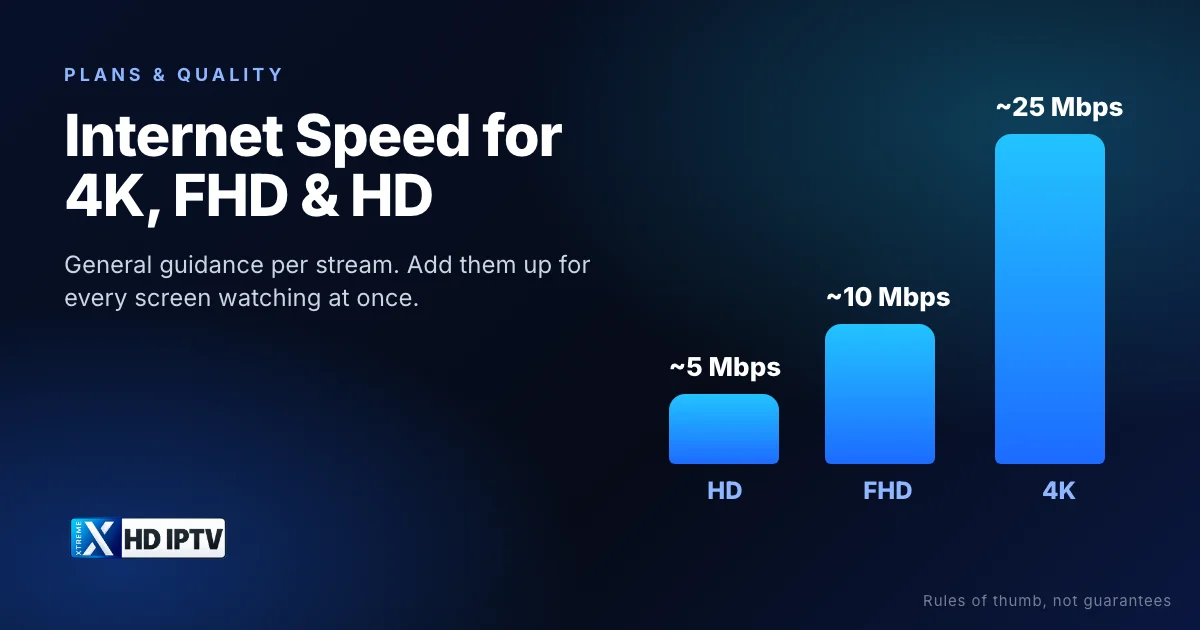
General speed guide per stream
| Quality | Resolution | Suggested speed per stream |
|---|---|---|
| HD | 720p | about 5 Mbps |
| FHD | 1080p | about 10 Mbps |
| 4K / UHD | 2160p | 25 Mbps or more |
These are rules of thumb with some headroom built in, not guarantees. For comparison, Netflix recommends 15 Mbps or more for its Ultra HD streams and 5 Mbps for HD. Live TV benefits from a larger margin than on-demand video, because a live stream can't download far ahead to cover a brief slowdown, so we suggest planning for 25 Mbps or more for each 4K screen.
Speeds are measured in megabits per second (Mbps). Broadband plans and speed tests use the same unit, so you can compare them directly. Just don't confuse it with megabytes (MB), which file downloads often show; one megabyte is eight megabits.
Why 4K needs more bandwidth
A 4K picture has about 8.3 million pixels, four times as many as Full HD. Modern compression such as HEVC (H.265) means a 4K stream doesn't need four times the bandwidth, but it still needs considerably more than FHD. Fast-moving content such as football also needs more data than a slow studio programme, because more of the picture changes from one frame to the next.
Frame rate matters too. Sport is often broadcast at 50 or 60 frames per second, twice the frame rate of many films, and those extra frames carry extra data. That is one reason a 4K football match can stutter on a connection that plays a 4K film smoothly.
Bandwidth is only one part of watching in 4K: the channel, the device, the HDMI port and the TV all need to support it too. Our 4K IPTV guide explains the full chain.
Multiple screens add up
Each connection is a separate stream, so speeds add together. Add a margin for everything else on your network: phones syncing photos, video calls, game downloads and smart home devices.
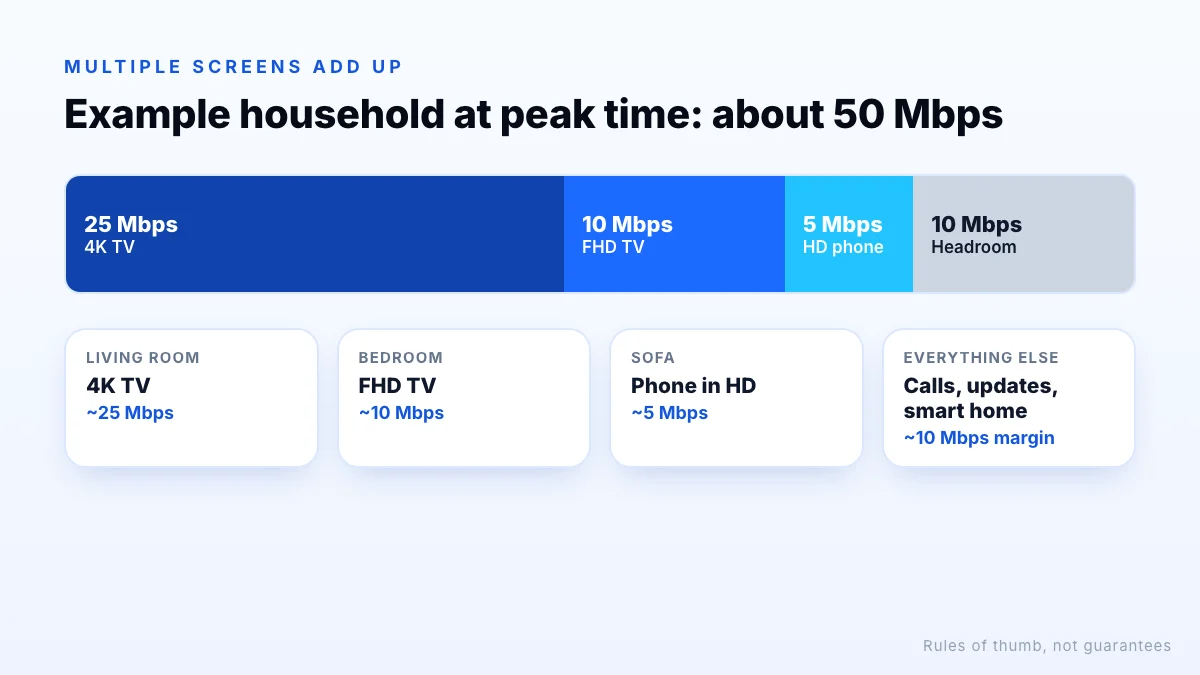
In this example, a 4K TV in the living room, an FHD TV in the bedroom and a phone in HD add up to about 40 Mbps. With a 10 Mbps margin for other devices, a connection that reliably delivers around 50 Mbps at peak time is a sensible target. If the bedroom TV also watched in 4K, the total would be closer to 65 Mbps.
Speed isn't everything: stability and Wi-Fi
A connection that averages 100 Mbps but drops to 10 Mbps every few minutes will buffer more than a steady 40 Mbps line. Three things matter as much as headline speed:
- Consistency at peak time. Many home connections slow down in the evening when the whole neighbourhood is online.
- Wi-Fi quality at the TV. Walls, distance and interference can cut the speed that reaches the streaming device to a fraction of what the router receives.
- Packet loss. Lost data has to be resent, which shows up as stutters even when the speed test looks fine.
How to test your connection properly
- Test on the streaming device itself, not your phone next to the router. Many TV app stores have speed test apps, or you can open a speed test site in the device's browser.
- Test at the time you watch, such as a weekday evening or just before a big match.
- Test more than once and note the lowest result, not the best.
- Compare Wi-Fi with a cable if you can. A big difference means your Wi-Fi is the bottleneck.
Then compare the lowest result with your household total from the section above. If it's close or below, plan to watch some screens in FHD or HD, or improve the connection first.
What about upload speed and ping?
Watching IPTV is almost entirely download traffic, so upload speed rarely matters unless someone in the house is on a video call or backing up files at the same time. Ping (latency) doesn't affect picture quality either, though a very high or unstable ping can make channel changes feel slower.
Tips to reduce buffering
- Go wired. Ethernet is usually more stable than Wi-Fi. Many Fire TV and Android TV devices support an Ethernet adapter.
- Move closer to the router or use the 5 GHz Wi-Fi band if your router has one; a mesh system or powerline adapter can help in large homes.
- Restart the device and router if playback suddenly gets worse.
- Pause big downloads and game updates while you watch.
- Pick the right quality. On a phone or small TV, an FHD or HD channel looks great and uses less bandwidth.
If buffering continues even though your speed looks fine, work through our IPTV troubleshooting steps, which cover app settings and other causes.
Choosing the right quality for your connection
| Reliable speed at the TV | Good choice for one screen |
|---|---|
| Under 8 Mbps | HD |
| 8–25 Mbps | FHD |
| 25 Mbps or more | 4K, if your device and TV support it |
Many Xtreme HD channels come in 4K, FHD and HD versions, so you don't have to pick one quality for good. If the 4K version of a match starts buffering on a busy evening, switching to the FHD version usually keeps it playing smoothly, and you can switch back once the household is quieter.
Mind your data cap
The bottom line
Plan for roughly 5 Mbps per HD stream, 10 Mbps per FHD stream and 25 Mbps or more per 4K stream, add them up for every screen watching at once, and leave a margin for the rest of the household. Then measure on the streaming device at peak time, because that number, not your broadband plan's headline speed, decides how smooth playback will be. The simplest test is real viewing: request a trial, follow the setup guide for your device, and try 4K, FHD and HD versions of the channels you watch.