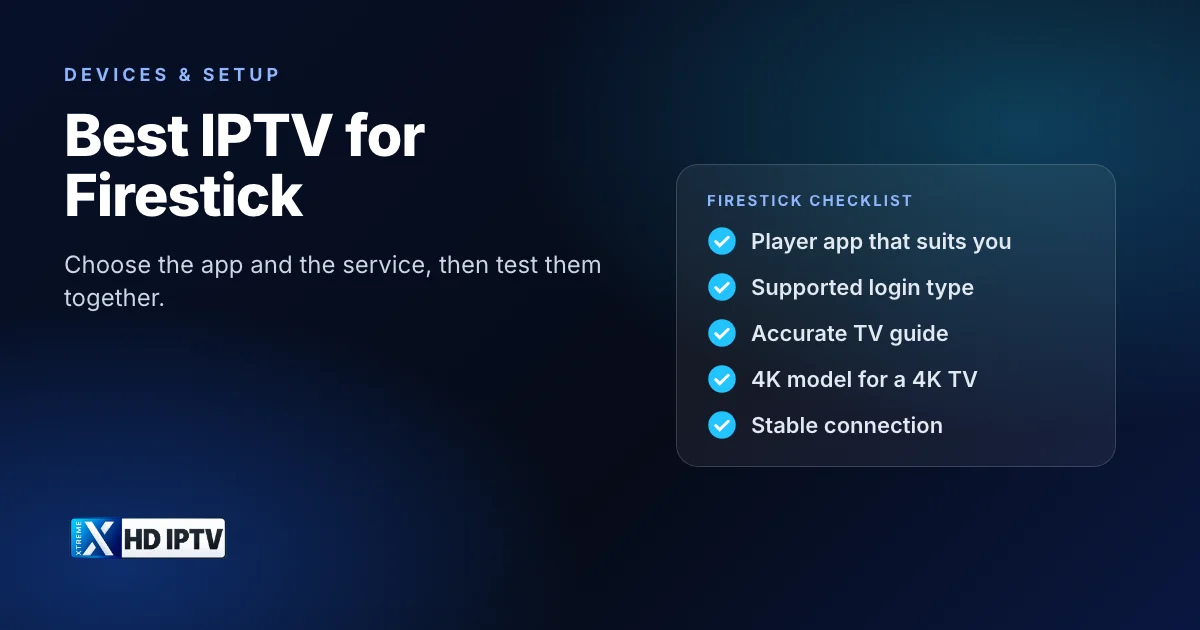
The Fire TV Stick is the most common way people watch IPTV, so “best IPTV for Firestick” is a popular question. It is really two questions in one: which app to use on the stick, and which service to watch through it. This guide answers both, compares the main player apps on Fire TV, and covers the model choices and setup details that make the biggest difference to everyday viewing.
Two decisions: the app and the service
- The app is the player on your stick. It shows the channel list and TV guide and plays the streams. It contains no channels of its own.
- The service provides the channels, on-demand content and guide data, and gives you the login details to enter in the app.
A great app can't fix an unreliable service, and a good service can feel clumsy in the wrong app. Judge them separately, then test them together. You can also change one without the other: the same login works in most players, so switching apps later doesn't mean switching services, and vice versa.
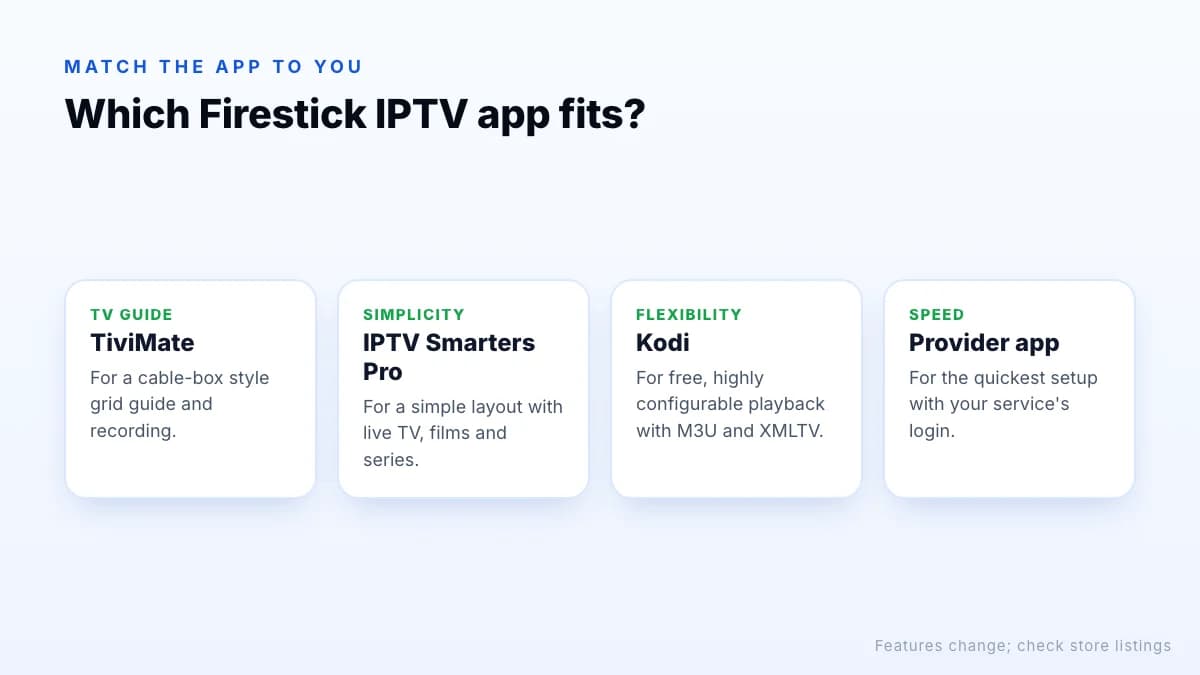
IPTV apps for Firestick compared
| App | Known for | Login types | Good fit if |
|---|---|---|---|
| TiviMate | Grid TV guide, recording, multiple playlists | Xtream Codes, M3U | You want a cable-box style guide |
| IPTV Smarters Pro | Simple layout with live, films and series sections | Xtream Codes, M3U | You want an easy, familiar app |
| Kodi + PVR IPTV Simple Client | Free and highly configurable | M3U + XMLTV | You like customising |
| A provider's own app | Preconfigured for that service | Provider login | You want the quickest setup |
Features and pricing change, so check each app's store listing or official website. Our IPTV player comparison covers more players and devices, and the free IPTV player guide explains what free versions include. On Fire TV, our own app installs through the Downloader app with code 9541272.
If you are unsure, start with the simplest option for your login type, use it for a week, and only switch if a missing feature bothers you. Most players can hold the same login side by side, so trying a second one costs nothing but a few minutes, as long as only one is streaming at a time.
Installing a player on Fire TV
Players listed in the Amazon Appstore install like any other app: search, select Get, open. For players that aren't listed, install the free Downloader app, allow it to install apps under Settings → My Fire TV → Developer Options, then enter the player's official download code or address. Only use codes and addresses published by the player's developer or by your provider; a code from a random video or forum post can install anything. Once installed, open the player, choose your login type and enter your details exactly as supplied.
What makes a service work well on Fire TV
- Fire TV-friendly logins. Xtream Codes or M3U work in every major Fire TV player.
- Quality options. 4K, FHD and HD versions of channels let the stick drop to a lighter stream when Wi-Fi is weak.
- An accurate TV guide. On a remote-driven device, the guide is how you navigate.
- Stability at peak times. Test on a weekday evening and during a live event.
- Reachable support. Send a question during your trial and see how quickly someone replies.
It also helps if the service lets you test on the actual stick you own, since an older or HD-only model can behave differently from a new 4K one. These points apply to any service, including ours. Our checklist on how to choose an IPTV provider goes into more detail.
Which Fire TV model to use
- 4K TV: a 4K Fire TV Stick or a Fire TV Cube. Only 4K models output 4K, and newer ones handle large guides faster.
- Full HD TV: a standard HD stick is enough, though a 4K model still helps with speed.
- Weak Wi-Fi at the TV: add Amazon's Ethernet adapter, or choose the Fire TV Cube, which has an Ethernet port built in.
If you watch a lot or want more storage and apps, an Android TV box can be a better fit; see the best Android TV box for IPTV.
Getting the most out of the stick
Fire TV Sticks are small computers with limited memory and storage, and a few habits keep IPTV apps responsive:
- Keep free storage. Uninstall apps you don't use and clear player caches under Settings → Applications → Manage installed applications.
- Run one player. Two IPTV apps both refreshing large guides in the background slow the stick down.
- Hide unused categories so the player loads less of the guide.
- Turn off Data Monitoring under Preferences if it is on; it can limit video quality.
- Restart weekly. Hold Select and Play/Pause for about five seconds.
- Go wired with an Ethernet adapter if your router is in another room.
If the stick still struggles with a large guide after these steps, the hardware is the limit, and a 4K model or a Fire TV Cube is the upgrade that helps most.
Avoid “fully loaded” sticks
You will see Fire TV Sticks sold as “jailbroken” or “fully loaded”. They are ordinary sticks with unofficial apps preinstalled, usually pointing at unlicensed streams. You lose control of what is installed, updates can break them, and the apps can be a security risk. A standard stick from a normal retailer, plus a player and a subscription you choose, is safer and easier to support.
Developer Options are normal
Test before you commit
- Install one or two players and sign in with trial details.
- Open the channels you watch most and leave one running for half an hour.
- Browse the guide and check it matches what is on.
- Try the 4K, FHD and HD versions of a sports channel in the evening.
- Note anything that stutters and ask support about it.
If something misbehaves, our IPTV troubleshooting guide helps you tell whether the problem is the stick, the app or the service.
The bottom line
The best IPTV for a Firestick is a good player app plus a dependable service, running on a Fire TV model that suits your TV. Choose the app for how you watch, the service for stability, guide quality and support, and the stick for your screen and Wi-Fi. Skip pre-loaded sticks and test everything together during a trial: request a trial and follow the Fire TV setup steps.