
A fresh IPTV playlist can contain thousands of channels in hundreds of groups, many of them in languages you don't speak or for countries you never watch. Editing the list down to what you actually use makes browsing faster, the guide quicker to load and the whole experience calmer. This guide explains what a playlist editor does, compares the three ways to edit, and covers the one safety point that matters most: your playlist link contains your login.
What an IPTV playlist editor does
An IPTV playlist, usually an M3U file or link, lists every channel with its name, logo, group and stream address. Our M3U playlist guide shows what one entry looks like. A playlist editor lets you change how that list appears to you:
- Hide groups and channels you never watch.
- Reorder groups and channels, and set channel numbers.
- Rename channels or groups so they make sense to you.
- Favourite the channels you use most.
- Fix logos and the link between channels and the TV guide.
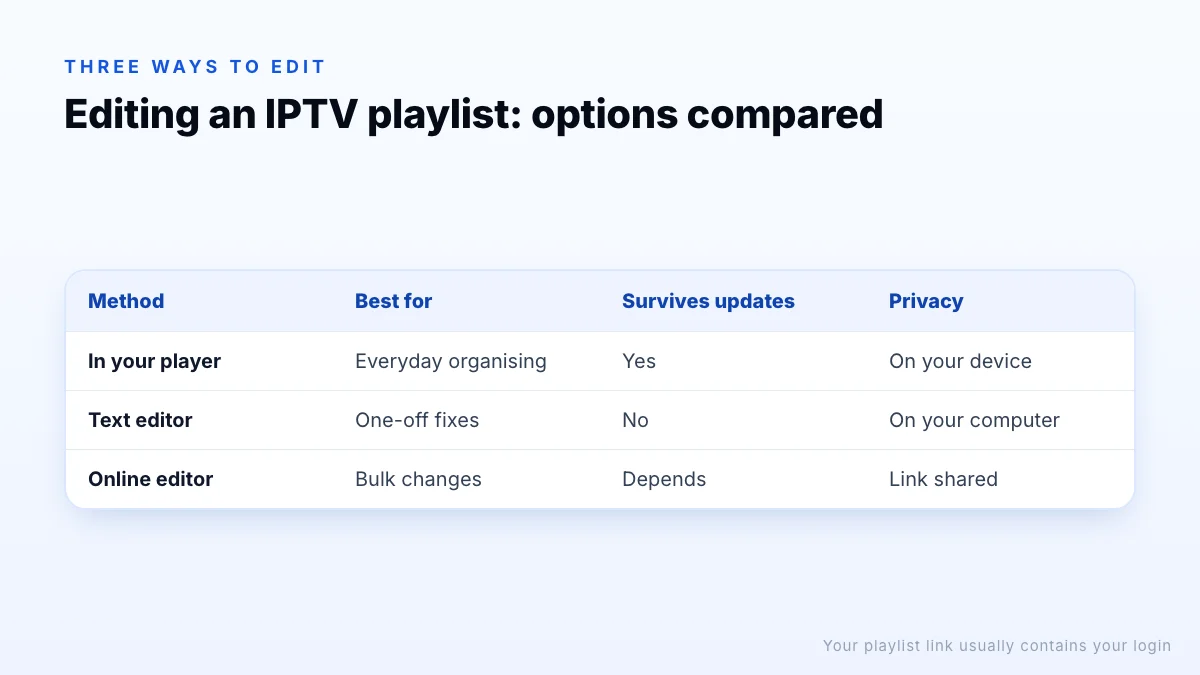
Three ways to edit a playlist
| Method | Best for | Survives playlist updates? | Privacy |
|---|---|---|---|
| In-app editing in your player | Everyday organising | Yes, usually | Stays on your device |
| Text editor on a downloaded M3U | One-off advanced fixes | No; you must repeat edits | Stays on your computer |
| Online or third-party editors | Bulk changes across devices | Depends on the tool | Your link is shared with the tool |
Editing inside your player (recommended)
Most popular players include the editing tools people need. In players such as TiviMate and IPTV Smarters Pro you can typically:
- Open the channel list or settings and find the option to manage groups or playlists.
- Hide whole groups, such as countries you don't watch, in one step.
- Add channels to favourites and set the favourites group to open first.
- Reorder groups, and in some players reorder channels or assign channel numbers.
- Choose a guide channel or logo manually where the automatic match is wrong.
The big advantage is durability: your provider can update the playlist and the player re-applies your choices to the new list. Exact menu names differ between apps and versions, so check your player's help pages. Our player comparison covers which apps offer the most control.
Editing an M3U file by hand
Because an M3U playlist is plain text, you can download it and edit it in any text editor, such as Notepad on Windows or TextEdit on a Mac in plain-text mode. Each channel is two lines: an #EXTINF line with its details, then its stream address. To remove a channel, delete both lines; to rename it, change the text after the last comma; to move it to another group, change group-title.
The catch with hand-edited files
Save the file with UTF-8 encoding so non-English channel names display correctly, and keep the #EXTM3U header as the first line.
A worked example
Suppose a playlist puts your favourite news channel in a group called “UK | News” with the name “News HD”. To move it into a group you've created called “Favourites” and rename it, change group-title="UK | News" to group-title="Favourites" and the text after the last comma to the name you want, then save. Repeat for each channel, keep the stream address lines untouched, and load the saved file in your player to check the result.
Online and third-party editors
Online playlist editors and editor apps let you upload a playlist link, organise it in a browser and get a new link or file to use in your player. They can be convenient for bulk changes across several devices, but there is a real privacy trade-off: an IPTV playlist link usually contains your username and password. Uploading it gives the editor's operator everything needed to use your account, and possibly to use up your connections.
- Prefer editing tools built into your player, or offline editing on your own computer.
- If you do use a third-party tool, choose one from a developer you can identify, and read its privacy policy.
- Never post your playlist link in forums, comments or screenshots.
- If you think your link has been exposed, ask your provider to reset your login.
Fixing TV guide matching
The guide is matched to channels using each channel's tvg-id. When a channel shows “No information”, the ID is missing or doesn't match the guide file. Try these fixes in order:
- Refresh both the playlist and the EPG in the player.
- Check the device's time zone and the player's EPG offset if times are shifted.
- Use the player's manual guide-matching option, if it has one, to pick the right guide channel.
- Try another quality version of the channel, which may be matched differently.
- Tell your provider which channels are affected so they can fix the source.
Our guide to what an EPG is explains how guide data is built.
Keeping several devices in step
If you watch on more than one TV, in-app changes usually have to be made on each device. Some players can back up settings to a file or sync favourites through an account, which saves repeating the work. Otherwise, start with the main TV, note the groups you hid and the favourites you added, and repeat the same steps on the others. It is a one-time job that makes every screen in the house feel the same.
Good habits for a tidy channel list
- Start by hiding, not deleting. Hidden groups can be brought back; deleted lines in a file can't.
- Build favourites first. For most households, a favourites group of 20 to 50 channels is all they use day to day.
- Keep one quality per channel in favourites, for example FHD, and fall back to others only when needed.
- Review after updates. If channels move or are renamed, search for them rather than rebuilding everything.
- Use the same player on every TV where possible; some players can back up or sync settings.
A tidier list also loads faster on low-memory devices such as streaming sticks. See how IPTV channel lists are organised for more on groups and quality versions.
The bottom line
For most people the best IPTV playlist editor is the one already in their player: hiding groups, building favourites and fixing guide matches in the app is quick, survives playlist updates and keeps your login on your own device. Hand-editing an M3U file in a text editor is useful for one-off fixes, while online editors trade convenience for privacy, because your playlist link is effectively your password. If you need help tidying a list, our IPTV settings guide covers the rest of the setup.