
Most IPTV setups work reasonably well out of the box, but a handful of settings make the difference between “fine” and genuinely smooth: the right resolution and frame rate, a stable network, and a few player options that suit your device. This guide walks through the settings worth checking, layer by layer, explains what each one does, and shows how to change them without creating new problems. If something is already broken, start with our IPTV troubleshooting guide instead.
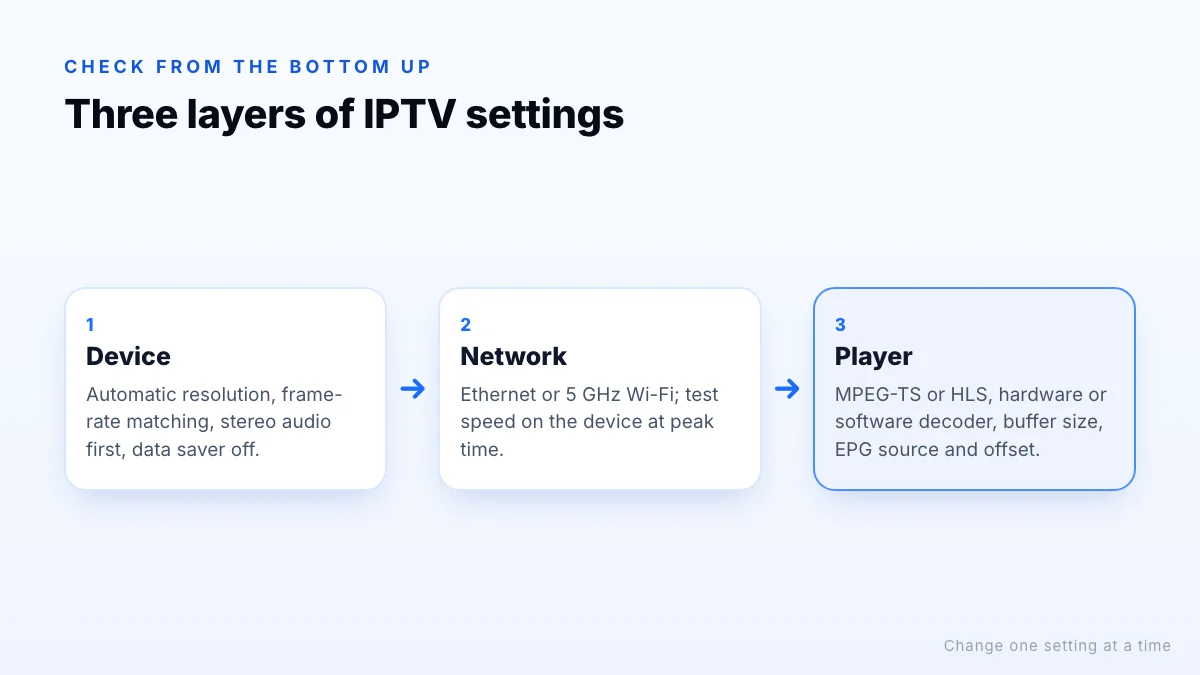
Three layers of IPTV settings
| Layer | Where you find it | What it controls |
|---|---|---|
| Device | Your TV, stick or box's system settings | Resolution, frame rate, audio output, data saving |
| Network | Router, Wi-Fi and the device's network settings | Speed, stability, DNS |
| Player app | The IPTV app's settings menu | Stream format, decoder, buffer, guide, parental controls |
Device settings
Resolution
Set display resolution to automatic, or to your TV's native resolution, so the device sends the best signal your TV accepts. On a 4K TV, make sure the device is connected to an HDMI port that supports 4K at 60 Hz.
Frame rate matching
Live TV is broadcast at 50 frames per second in many countries and 60 in others. A setting called “match frame rate” or “match original frame rate” lets the TV switch to the rate of what you are watching, which reduces judder on sport. A brief black screen when changing channels is normal with it on.
Audio output
If you hear no sound or it drifts out of sync, set audio output to stereo or PCM first. Once everything works, try surround or passthrough options for your soundbar or receiver.
Data saving
Some devices include data monitoring or data saver modes that limit video quality. Turn them off for IPTV unless you are on a capped connection.
Network settings
- Use Ethernet wherever possible; it is the single most effective setting for smooth playback.
- On Wi-Fi, use 5 GHz and keep the device out from behind the TV.
- Check speed on the device itself at the time you watch; see our speed guide.
- Try a different DNS server if some channels or the guide fail to load while others work.
- Prioritise the TV in your router's quality-of-service settings, if it has them.
Player app settings
Menu names vary between apps, but these options are common:
Stream format
Many players let you choose between MPEG-TS and HLS (M3U8). MPEG-TS is often quicker to start; HLS can be more robust on some networks. If a channel stutters, test it with the other format.
Decoder
Hardware decoding uses the device's video chip and is usually smoother and cooler; software decoding can help with streams the hardware struggles with. If you see a black screen with sound, switch decoder or player engine.
Buffer size
A larger buffer holds more video in reserve, smoothing over short drops in speed but making channel changes slower. Small increases help on slightly unstable connections; large ones rarely do.
User agent and advanced options
Some players expose advanced options such as a custom user agent or connection timeout. Leave these at their defaults unless your provider specifically tells you to change them.
Default quality and external player
Some apps let you prefer a quality version or open streams in an external player such as VLC. Useful for testing, less so for everyday use.
One change at a time
Player settings by symptom
| Symptom | Try first | Then try |
|---|---|---|
| Stutters every few seconds | Switch stream format (TS/HLS) | Slightly larger buffer |
| Black screen, sound plays | Switch decoder (hardware/software) | Different player engine |
| Slow channel changes | Smaller buffer | Lighter quality version |
| Picture judders on sport | Device frame-rate matching | 50/60 fps channel version |
TV guide (EPG) settings
- EPG source: with an Xtream Codes login the guide usually loads automatically; with an M3U playlist, add the provider's EPG (XMLTV) link.
- Update interval: daily updates are enough for most people; more frequent updates use more memory on small devices.
- Time offset: keep it at zero and set the device's time zone correctly. Only adjust the offset if the guide is shifted by an exact number of hours.
- Days to keep: fewer days of guide data load faster on streaming sticks.
Our guide to what an EPG is explains how guide data works.
If the guide fills slowly on a streaming stick, reducing the number of days stored and hiding unused groups usually helps more than any other guide setting, because the player has less data to process each time it refreshes.
Parental controls and profiles
Most players can lock categories or channels behind a PIN, hide adult groups entirely and, in some apps, create separate profiles with their own favourites. Set these up before handing the remote to children, and remember that device-level controls on Fire TV, Google TV and smart TVs can restrict which apps can be opened at all. Our playlist editor guide shows how to hide groups permanently.
Settings that differ by device
- Fire TV: Developer Options for installing apps, Data Monitoring under Preferences, and display and audio settings under Display & Sounds.
- Google TV and Android TV: display, frame-rate matching and sound settings under the system settings; app permissions under Apps.
- Samsung and LG TVs: picture modes matter more here; a “Movie” or “Filmmaker” mode avoids heavy motion processing on live sport.
- Phones and tablets: battery saver and data saver modes can lower quality; turn them off while streaming.
How to change settings without making things worse
- Pick one channel that shows the problem, and one that doesn't.
- Note your current settings, or take a photo of the screen.
- Change one setting and test the problem channel for five minutes.
- Keep the change if it helped; undo it if it didn't.
- Move on to the next setting, starting with the device, then network, then player.
If nothing helps, test the same channel on a second device. If it fails there too, the problem is unlikely to be a setting; contact support with your device, app and the channels affected.
The bottom line
Good IPTV settings come down to three layers: an automatic resolution, frame-rate matching and simple audio on the device; a wired or strong 5 GHz connection; and a player configured with the right stream format, decoder, buffer and guide settings for your device. Change one thing at a time and test as you go. For Fire TV specifics, see our best IPTV for Firestick guide, and for device-by-device setup, the setup guide.