Most people want IPTV on the biggest screen in the house, not a phone. The good news is that almost any television can show it, from a brand-new smart TV to a ten-year-old set with a spare HDMI port. The right method depends on what your TV can already do and how much you want to spend. This guide compares the four practical options, walks through setting each one up, and covers the settings that make the difference on a large screen.
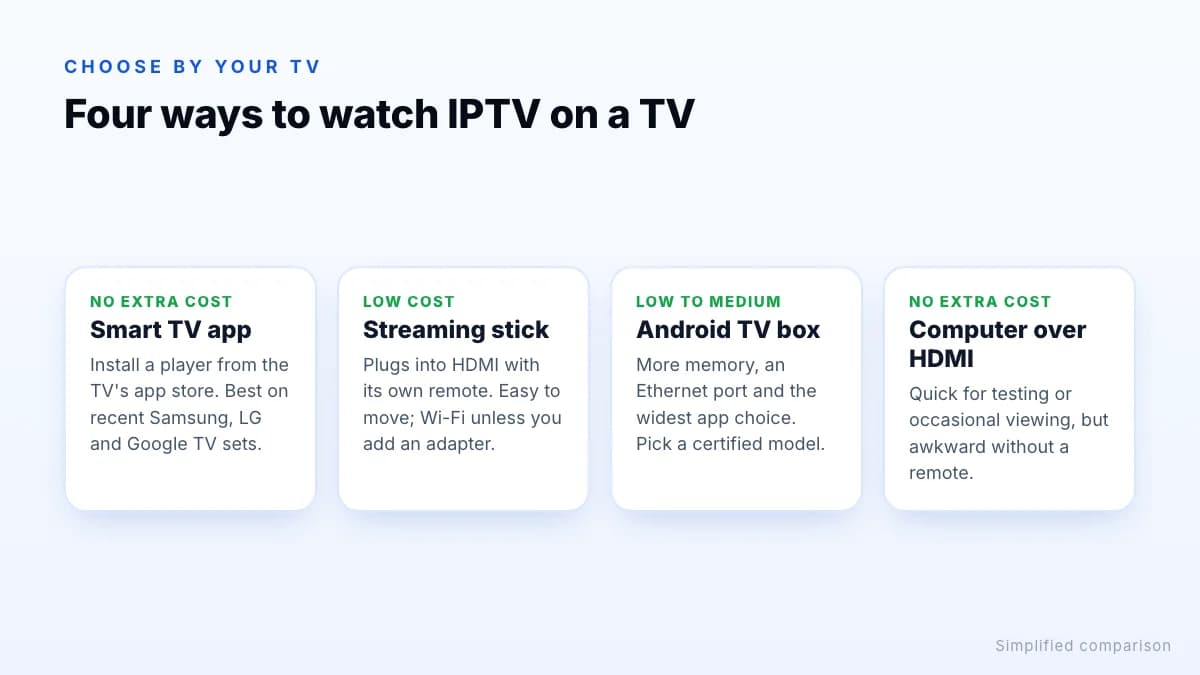
Four ways to get IPTV on a TV
IPTV is delivered over the internet to a player app, so the question is simply where that app runs: on the TV itself, or on a small device plugged into it.
| Option | Extra cost | Best for | Watch out for |
|---|---|---|---|
| Smart TV app | None | Recent Samsung, LG and Google TV sets | Fewer player apps; slower processors on some TVs |
| Streaming stick | Low | Any TV with HDMI; easy to move | Limited storage; Wi-Fi only unless you add an adapter |
| Android TV / Google TV box | Low to medium | Big channel lists, more apps, Ethernet | Avoid uncertified no-name boxes |
| Computer over HDMI | None if you own one | Occasional viewing, testing | Clumsy without a remote |
Option 1: A smart TV app
If your TV is a smart TV, you may not need anything else. Samsung TVs run Tizen, LG TVs run webOS, and many other brands run Google TV or Android TV. Each has its own app store with a selection of IPTV players.
- Open the TV's app store and search for a player your provider supports.
- Install it and open it. Some players show a device ID or MAC address and ask you to add your playlist on their website; others let you sign in on screen.
- Enter the login details or playlist link from your subscription and wait for channels and the guide to load.
Smart TV apps are convenient, but TV processors are often modest, so large channel lists and TV guides can feel slow. Our comparison of IPTV player apps shows which players run on which platforms, and the smart TV setup steps cover Samsung and LG.
Option 2: A streaming stick
A streaming stick plugs straight into an HDMI port and comes with its own remote. The Amazon Fire TV Stick is the most common choice for IPTV because apps can be installed easily with the Downloader app. Buy a 4K model if your TV is 4K; an HD model is enough for a Full HD TV.
Setup takes about ten minutes: install Downloader, allow it to install apps, enter the code for your player and sign in. Our step-by-step Fire TV Stick guide walks through each screen. Sticks are easy to move between rooms, but have limited storage and no Ethernet port without an adapter.
Option 3: An Android TV or Google TV box
A box is a step up from a stick: usually more memory and storage, an Ethernet port, and access to the widest range of player apps through Google Play. This is the best option if you watch a lot, use large channel lists or want features such as recording. Stick to certified devices that still receive updates; our guide to the best Android TV box for IPTV explains what to look for, and the IPTV box guide compares box types.
Option 4: A computer over HDMI
If you already have a laptop, an HDMI cable is the quickest way to try IPTV on the TV. Install a player on the computer, connect it to the TV, and set the display to mirror or extend. It works well for testing a service or the occasional match, but switching channels from the sofa without a remote is awkward, so most people move to a stick or box for everyday viewing. See our guide to the IPTV player for Windows for PC options.
Screen mirroring from a phone
Getting the best picture and sound
Match the stream to the TV
Choose the 4K version of a channel only if the TV, the device and your connection all support it. On a Full HD TV, the FHD version looks just as good and uses less bandwidth. Our 4K IPTV guide explains the full chain.
Check the device settings
- Set display resolution to automatic so the device outputs the TV's best format.
- Turn on “match frame rate” if available, to reduce judder on sport.
- Use a 4K-capable HDMI port for 4K; some TVs only support it on one or two ports.
Get a solid connection
A large TV makes buffering and drops in quality more obvious. Ethernet is the most reliable connection; otherwise use 5 GHz Wi-Fi and keep the device out from behind the TV. See what speed you need for each quality.
Sound
If you use a soundbar or AV receiver and hear no sound or out-of-sync audio, set the device's audio output to stereo or PCM first, then try the surround options once everything works.
Watching on more than one TV
Every TV needs its own way of running the player: its own smart TV app, stick or box. You can mix them, for example a box in the living room and the built-in app on the bedroom TV, and sign in with the same subscription on each. What limits you is how many play at the same moment: each TV streaming at once uses one connection, and each needs its own share of your internet speed. A household with a 4K TV and an FHD TV playing together needs roughly 35 Mbps for those two streams alone. Our guides to connections and internet speed show how to work it out.
The bottom line
Watching IPTV on a TV comes down to where the player app runs. Use the TV's own app if it is quick and supported, add a streaming stick for a cheap and simple upgrade, or choose a certified Android TV box for the most apps, a wired connection and large channel lists. Then match the stream quality to your screen and connection. If several TVs will watch at once, check how many connections you need, and request a trial to test on your own TV first.