
A laptop or desktop is a handy second screen for IPTV, whether you are watching in a home office, testing a new service or keeping a match on while you work. Windows doesn't include an IPTV player, so you need to add one. This guide compares the main options, from free open-source players to Microsoft Store apps, and shows how to set each one up with your subscription.
What you need
- A Windows 10 or Windows 11 PC with an up-to-date graphics driver.
- Your subscription details: either an M3U playlist link (plus an EPG link for the TV guide) or an Xtream Codes login (username, password and server URL). Our M3U playlist guide explains the difference.
- A stable connection; a cable is better than Wi-Fi for live sport.
Windows IPTV players compared
| Player | Cost | Login types | TV guide | Best for |
|---|---|---|---|---|
| VLC media player | Free, open source | M3U link | No grid guide | Quick playback and testing a link |
| Kodi + PVR IPTV Simple Client | Free, open source | M3U + XMLTV | Yes, full guide | A TV-style experience on a PC |
| MyIPTV Player | Microsoft Store | M3U + EPG | Yes | A simple Windows app |
| Desktop TV players (e.g. IBO Player Pro) | Varies | Check the developer's site | Yes | Using the same player as on your TV |
Prices, features and availability change, so check each app's official page or store listing before you install. Whatever you choose, the player only plays what your subscription provides; none of them include channels.
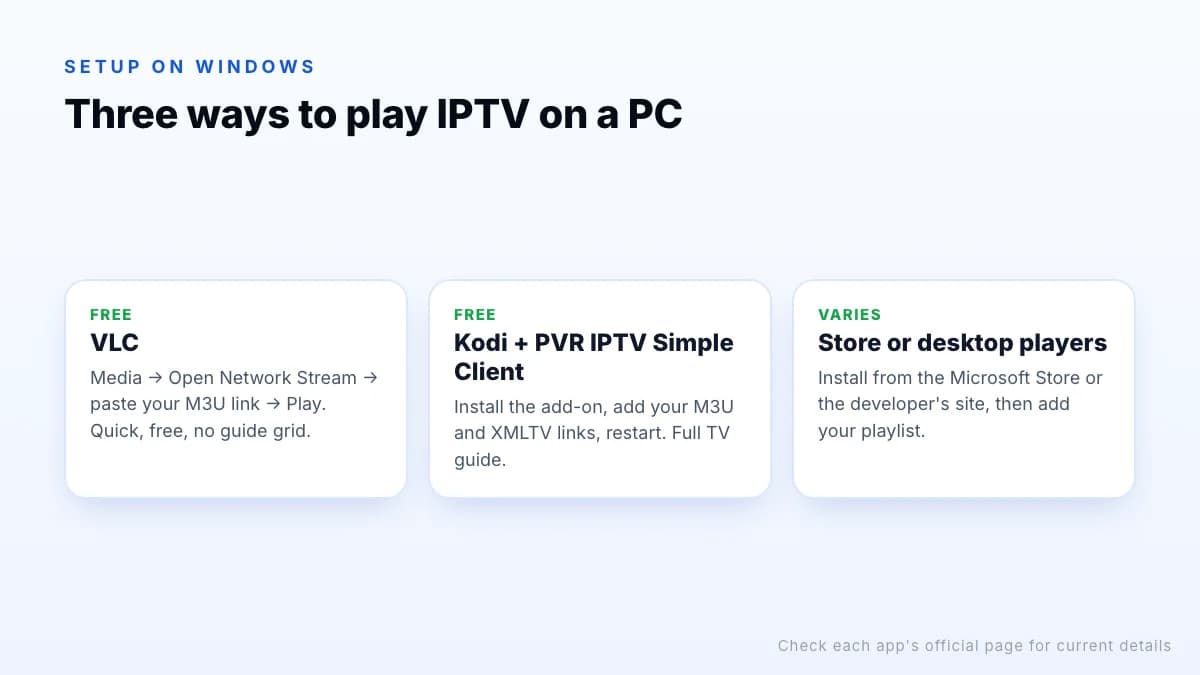
VLC: quickest free option
VLC is a free, open-source media player from the VideoLAN project. It can open an M3U playlist from a web address, which makes it the fastest way to check that a playlist works.
- Download VLC from the official VideoLAN website and install it.
- Open VLC and choose Media → Open Network Stream.
- Paste your M3U playlist link and select Play.
- Open View → Playlist to see and switch channels.
VLC has no TV guide grid and large playlists can be slow to browse, so it is better for testing and occasional viewing than as an everyday TV app.
Kodi with PVR IPTV Simple Client
Kodi is a free, open-source media centre. Its PVR IPTV Simple Client add-on reads an M3U playlist for channels and an XMLTV file for the guide, turning a PC into something that feels like a TV box.
- Install Kodi from the official Kodi website or the Microsoft Store.
- Go to Settings → Add-ons → Install from repository → PVR clients and install PVR IPTV Simple Client.
- Open the add-on's Configure screen, set the M3U playlist location to your remote URL and add the XMLTV (EPG) URL.
- Restart Kodi. Channels appear under TV, with the guide alongside.
The add-on also supports channel groups, logos and catch-up where your provider offers it. It takes ten minutes to set up but gives the most complete free experience on Windows.
Microsoft Store and desktop players
If you prefer a dedicated app, search the Microsoft Store for IPTV players. MyIPTV Player is one long-standing option: you add a playlist and EPG source in its settings and refresh to load channels. Some players built for TVs also offer Windows versions; IBO Player Pro, for example, lists a Windows desktop app on its official website. Using the same player on your PC and TV means the layout and favourites feel familiar.
Download from official sources only
Which one should you use?
- Just want to check a playlist works? VLC. It takes two minutes and needs no configuration.
- Want a TV guide and channel groups without paying? Kodi with PVR IPTV Simple Client.
- Want an app that feels like the one on your TV? The Windows version of your TV player, if the developer offers one.
- Only have an Xtream Codes login? Choose a player that supports it, or ask your provider for an M3U link.
Troubleshooting on Windows
The playlist won't load
Paste the link into a browser. If it downloads a text file beginning with #EXTM3U, the link works and the problem is the player's settings; if it shows an error, check the link and that your subscription is active.
Black screen, but sound plays
Usually a decoding problem with 4K or HEVC streams. Update your graphics driver, toggle hardware acceleration in the player's video settings, or try the FHD version of the channel.
Windows Firewall prompt
The first time a player streams, Windows may ask whether to allow it on your network. Allowing it on private networks is enough for home use.
Stuttering on Wi-Fi
Laptops often connect at a lower Wi-Fi speed than you expect. Move closer to the router, switch to 5 GHz, or use a cable. Our IPTV troubleshooting guide covers the general checks.
Watching while you work
One advantage of a PC is multitasking. VLC can stay on top of other windows (View → Always on top), so you can keep a match in a corner of the screen, and many players support a mini or picture-in-picture mode. With two monitors, drag the player to the second screen and go full screen there. Remember that a stream playing in the background still uses a connection and bandwidth, so close it when you stop watching.
Tips for watching on a PC
- Use a cable for live events; laptop Wi-Fi often drops quality when the signal is weak.
- Turn on hardware acceleration in the player's video settings to reduce CPU load and fan noise.
- Pick the right quality. A laptop screen rarely benefits from 4K; FHD looks sharp and uses less bandwidth.
- Mind your connections. A PC stream counts as a screen, like any other device. See how many connections you need.
- On a TV, an HDMI cable works, but a stick or box is easier day to day; see how to watch IPTV on your TV.
Older or low-power laptops may struggle with 4K HEVC streams even with hardware acceleration; FHD is the safer choice there. For Mac, the same approach applies: VLC and Kodi are available for macOS too, and our setup guide for computers covers both.
The bottom line
On Windows, VLC is the quickest free way to play an M3U link, Kodi with PVR IPTV Simple Client is the most complete free option with a full TV guide, and Microsoft Store or desktop players suit people who want a dedicated app. Install only from official sources and match the player to your login type. For other devices, see our IPTV player app comparison, and request a trial to test your chosen player before subscribing.